புதிய கவுன்டரைச் சேர்ப்பது
இந்த வழிகாட்டி மெர்ச்சன்ட் செயலியில் புதிய கவுன்டரை எவ்வாறு உருவாக்குவது என்பதை விளக்குகிறது. இதன் மூலம் தயாரிப்புகளை கவுன்டர் KOT-க்கும், கவுன்டர் வாரியாக மெனுவுக்கும், QR ஸ்கேன் செய்யவும் பிரிவு செய்யலாம்.
தேவையானவை
- கவுன்டர்களை திருத்த மற்றும் நிர்வகிக்க அனுமதி உள்ள பாத்திரத்தில் மெர்ச்சன்ட் செயலியில் உள்நுழைந்திருக்க வேண்டும்.
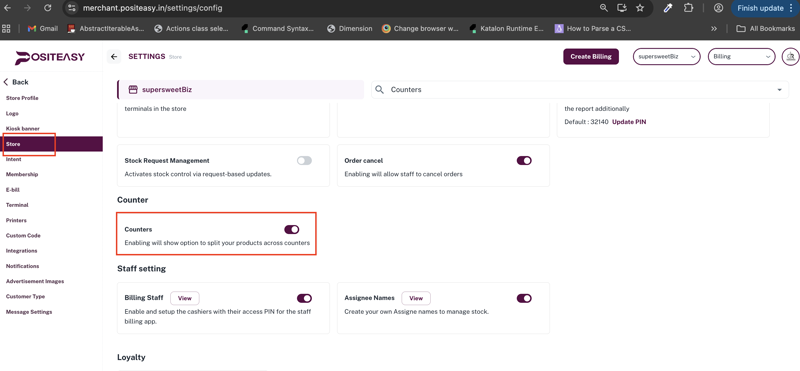
- கடைக்கு கவுன்டர் விருப்பம் செயல்படுத்தப்பட்டிருக்க வேண்டும்.
படி 1: கவுன்டர்கள் பிரிவிற்கு செல்லவும்
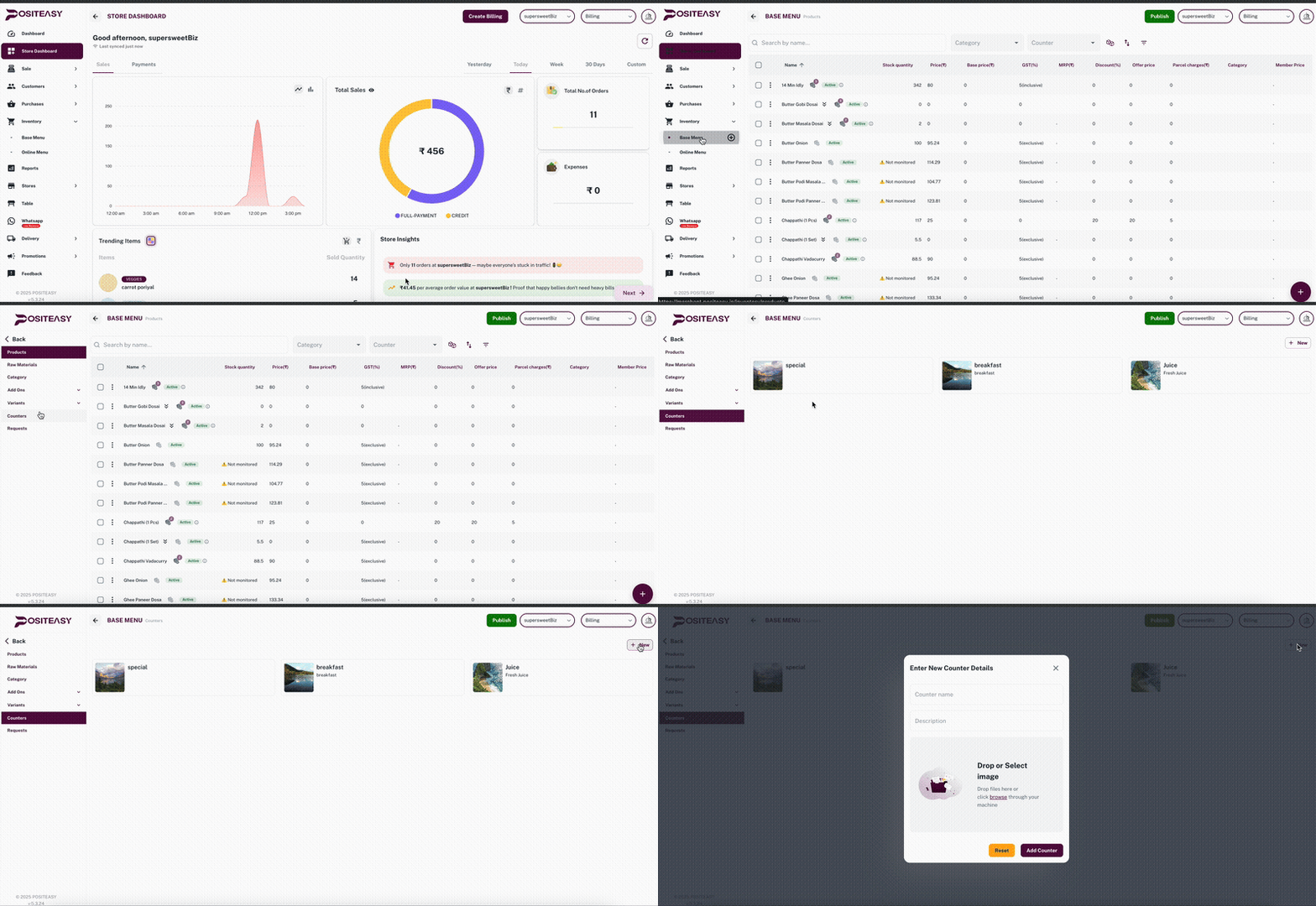
- முதன்மை நேவிகேஷன் பாரில் Inventory என்பதைக் கிளிக் செய்யவும்.
- Inventory பக்கத்தில் Base Menu டேப் தேர்ந்தெடுக்கப்பட்டிருக்கிறதா எனச் சரிபார்த்து கிளிக் செய்யவும்.
- கவுன்டர்கள் பிரிவைத் தேர்ந்தெடுத்து New பட்டனைக் கிளிக் செய்து கவுன்டர் சேர்க்கும் ஃபார்மைத் திறக்கவும்.
படி 2: புதிய கவுன்டரைச் சேர்க்கவும்
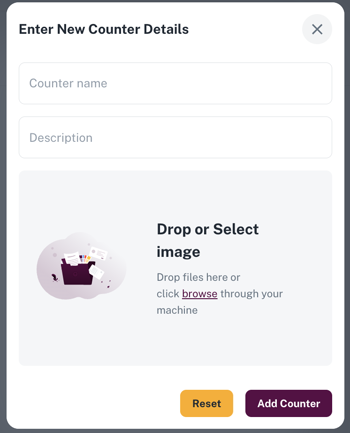
புதிய கவுன்டர் விவரங்களை உள்ளிடு ஃபார்மில் பின்வருவனை நிரப்பவும்:
-
கவுன்டர் பெயர்
- ரிப்போர்ட்டுகளிலும் KOT அட்டவணையிலும் தோன்ற வேண்டிய கவுன்டர் பெயரை உள்ளிடவும்.
- உதாரணங்கள்:
ஜூஸ் கவுன்டர்,தோசை கவுன்டர்,லைவ் கிரில்.
-
விளக்கம் (விரும்பினால்)
- குறுகிய விளக்கத்தைச் சேர்க்கவும்.
- உதாரணம்:
நுழைவு வாசல் அருகே உள்ள அனைத்து ஜூஸ் மற்றும் மாக்டெயில் ஆர்டர்களையும் நிர்வகிக்கிறது.
படி 3: படம் சேர்க்கவும் (விருப்பம்)
Drop or Select image பகுதியில், கீழ்கண்டவற்றில் ஏதாவது ஒன்றை செய்யவும்:
- படத்தை பதிவேற்ற பகுதியில் Drag and drop செய்யவும், அல்லது
- browse என்பதை அழுத்தி, உங்கள் கணினியில் இருந்து ஒரு படத்தை தேர்வு செய்யவும்.
படி 4: சேமிக்க அல்லது ரீசெட் செய்ய
-
அனைத்து புலங்களையும் அழித்து மீண்டும் தொடங்க விரும்பினால், Reset என்பதை அழுத்தவும்.
-
அனைத்து விவரங்களும் சரியாக இருந்தால், சேமிக்க Add Counter என்பதை அழுத்தவும்.